
Check what your ground can support
You need a Windows laptop with LWS and OBS Studio, a compatible camera, power for the camera and laptop, internet access and a club YouTube channel enabled for live streaming. A Wi-Fi camera also needs a reliable local network between the boundary and the laptop.
The camera-to-laptop connection and the internet upload are separate parts of the setup. Strong Wi-Fi at the pavilion does not prove that the camera will stay connected at the sightscreen. Test at the exact positions you will use on match day.
Prepare YouTube before match day
Enable live streaming on the club channel in advance. YouTube says first-time activation can take up to 24 hours. Schedule the match, check its title and visibility, and copy the watch link for supporters. Use a private or unlisted test for rehearsal; check the current LWS pilot requirements before expecting that test to appear in the supporter app.
Choose a latency mode appropriate to your coverage. Low latency can reduce the gap between the action and the viewer, but no setting guarantees a fixed delay on every connection.
Connect the picture and the score
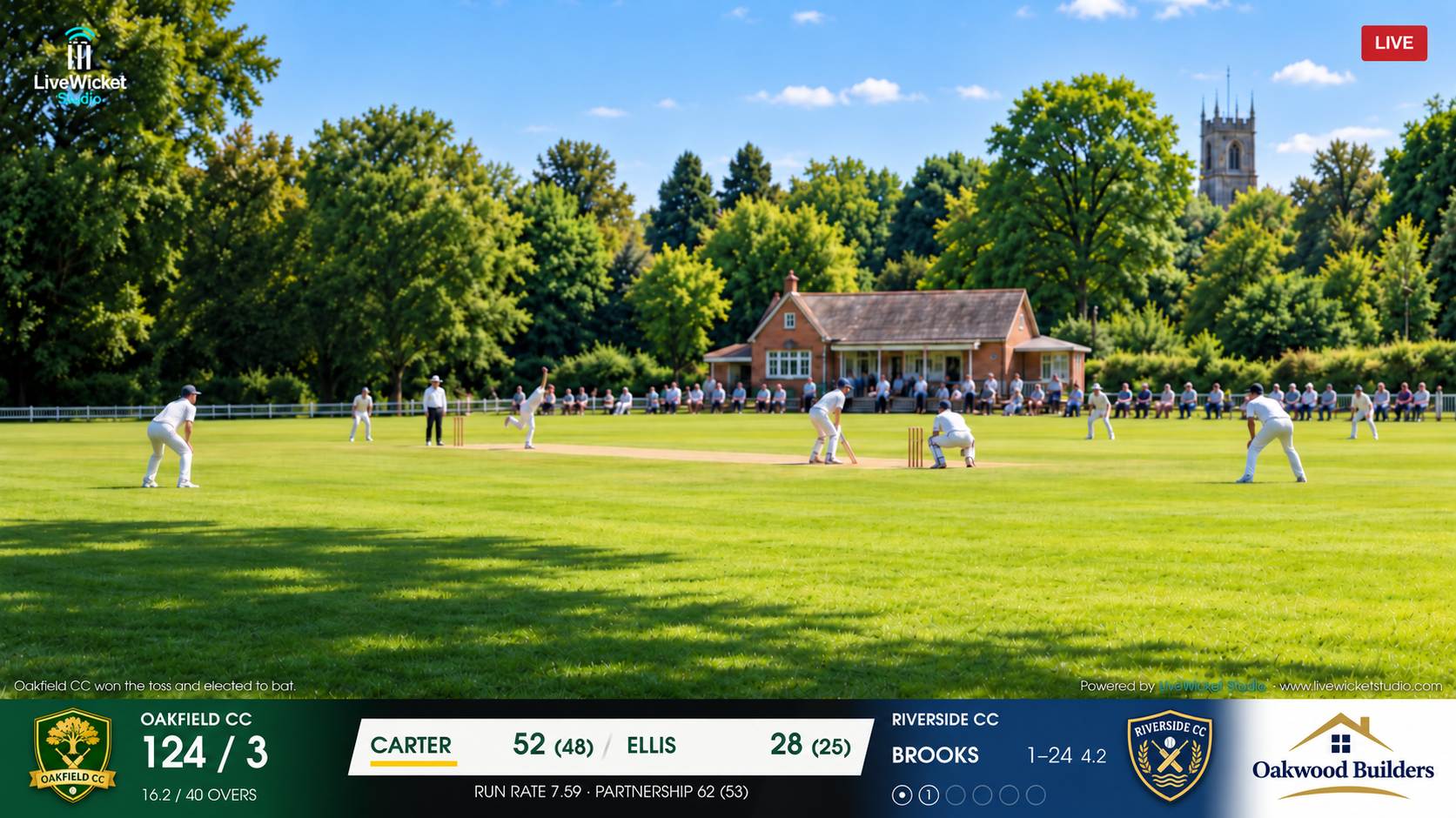
Confirm the camera picture works in OBS before starting the broadcast. In LWS, prepare the fixture, overs, teams, club colours and sponsor logos. Open the built-in scorer and select the opening batters and bowler.
LWS supplies the score graphics and stream controls. OBS combines the camera picture and graphics and sends the broadcast to YouTube. Use the OBS preview to check that the live score is readable and the sponsor panel sits correctly over the picture.
Run a short scoring and streaming test
Record a few deliveries, a boundary and a wicket in a test match. Watch OBS locally, then watch YouTube on another device at the live edge. If OBS updates straight away but YouTube follows later, the extra delay is in the broadcast and viewing path rather than the local scoring graphic.
Our laptop tests have shown viewer delays of about 6 seconds in one session and 10 to 11 seconds in another. Those are test observations, not a performance guarantee. In OBS Stats, check network dropped frames, encoding lag and rendering lag separately.
Before the first ball
- Check power, camera position, Wi-Fi and sustained internet upload.
- Confirm the correct fixture, teams, overs and opening players.
- Open the YouTube watch link on a separate device and mute its audio near the laptop.
- Check the stream is actually live and YouTube reports a healthy signal.
- Confirm any replay and sharing settings needed for this match.
Finish a rehearsal before inviting supporters to watch a real match. Allow time to correct problems while the ground is quiet.
Official setup reference
YouTube: create a live stream with an encoder. Check YouTube’s current guidance when setting up your club channel.